
Anycubic Kobra 3 Camera
4.5Editor score
DIY replaceable frame design
Compatible with Klipper printers
Ultra-clear resolution output
This guide compares the top 3D Printer Camera for Remote Monitoring options available in October 2026 to help you choose the best surveillance solution for
Choosing the right surveillance tool for your additive manufacturing setup is crucial for ensuring successful prints and saving valuable filament materials during long runs.
We evaluated ten leading camera systems based on resolution, compatibility, remote access capabilities, and user feedback to compile this comprehensive selection for makers.
Each entry below highlights specific strengths and limitations while noting that availability and pricing can shift rapidly so verify details before finalizing your purchase decision.
4.5Editor score

4.3Editor score

4.5Editor score
The following table provides a side-by-side technical overview of each camera system to help you quickly identify which model aligns with your specific printer ecosystem.




The Creality Official Nebula Camera stands out as a top contender for makers seeking effortless monitoring. It holds a solid rating among users and delivers consistent performance when paired with supported Creality hardware.
We may earn a commission when you buy through this link, at no additional cost to you.
Its standout quality is the automated time-lapse feature which captures an image at the end of each layer without any additional configuration from the user. This saves time and ensures you have a complete video record of your prints automatically.
While it offers excellent clarity and a built-in infrared light for dark environments, the focus adjustment requires manual rotation which might take patience during initial setup. However once aligned it provides stable high-quality visuals for daily use.
This camera is best suited for owners of Ender or CR series machines who want a seamless integrated solution. It balances advanced features like remote stopping with a user-friendly cloud app interface for reliable oversight.
The embedded system captures layer images automatically so you never miss a moment without extra manual intervention.
Infrared fill lights ensure the image stays clear even in low light conditions for uninterrupted 24-hour monitoring.
We may earn a commission when you buy through this link, at no additional cost to you.
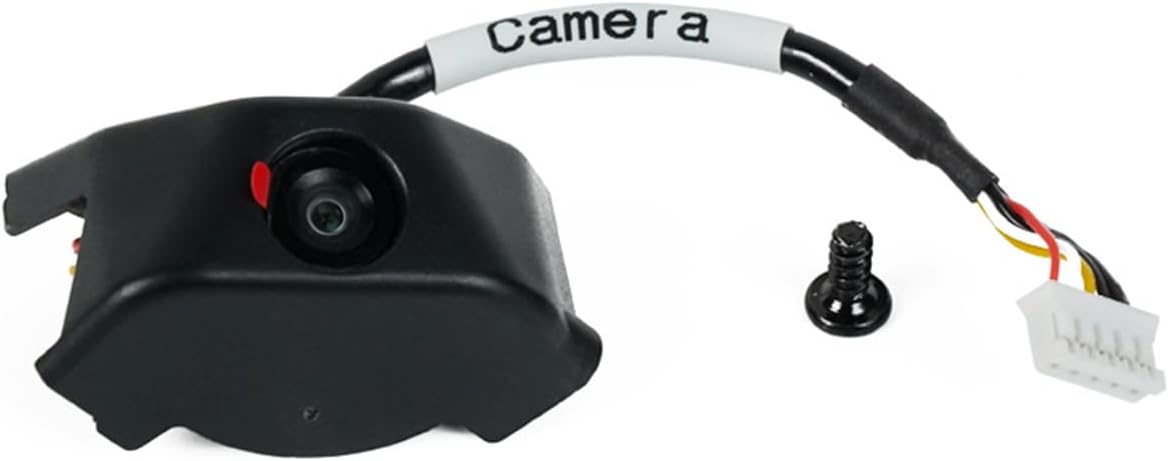
The Anycubic Kobra 3 Camera offers a budget-friendly way to add remote viewing to your workshop without breaking the bank. Users appreciate its simple design and the ability to integrate it into various setups.
We may earn a commission when you buy through this link, at no additional cost to you.
Its DIY frame feature allows you to change the aesthetic of the camera housing which adds a personal touch to your printing station. This flexibility is rare at this price level and encourages creative modifications.
Although it is inexpensive and easy to install via USB the app interface sometimes lacks advanced controls found in more expensive rivals. For basic monitoring however it performs reliably and shows clear details of the nozzle.
Makers on a tight budget who still want real-time visibility will find this camera ideal. It is particularly useful for those running Klipper firmware or needing a quick upgrade for older machines.
The replaceable frame lets you personalize the look of your setup to match your workshop theme or style.
It connects easily to Klipper printers and computers making it a versatile choice beyond just Anycubic hardware.
We may earn a commission when you buy through this link, at no additional cost to you.
The Creality K1 AI Camera is designed specifically to maximize the potential of the K1 series printers with a dedicated interface and high resolution. It provides crisp visuals that help identify tiny defects during the print process.
We may earn a commission when you buy through this link, at no additional cost to you.
This camera leverages the Creality Cloud ecosystem to automate time-lapse recording and remote control functions. The seamless integration ensures that you can track progress from any device without complex network configuration.
While it delivers excellent clarity and reliability the full benefit is tied to owning compatible K1 hardware. Owners of older models may not find the dedicated interface useful unless they upgrade their printer lineup.
If you own a K1 SE or Max this is the most efficient monitoring solution available. It combines ease of installation with powerful software features that enhance overall printing efficiency and safety.
The reserved interface on K1 printers allows for a direct connection that simplifies setup significantly for users.
1080P resolution ensures every layer is captured clearly so you can inspect details remotely without guesswork.
We may earn a commission when you buy through this link, at no additional cost to you.
The Official Original FLASHFORGE AD5M Camera Smart Kit is tailored for users of the Adventurer 5M and AD5X models. It provides a seamless integration that aligns with the printer's existing software capabilities.
We may earn a commission when you buy through this link, at no additional cost to you.
You can access the feed through a PC browser over a local network which is helpful for office environments where internet access might be restricted. This LAN support offers reliable local monitoring options.
While it works well for the intended models it lacks flexibility if you switch to a different printer brand later. The setup is straightforward and includes helpful videos to guide you through the physical installation.
This kit is the ideal choice for Flashforge owners who want a native solution. It balances simplicity with useful recording features that let you review prints after completion for quality assurance.
LAN support allows you to monitor prints on your PC browser without needing an external internet connection.
The kit captures the entire print process allowing you to save videos for review and sharing later.
We may earn a commission when you buy through this link, at no additional cost to you.
The Creality Official Nebula Camera with night vision function is built for continuous monitoring around the clock. It offers a high-resolution feed that remains usable even in low-light conditions thanks to its infrared capabilities.
We may earn a commission when you buy through this link, at no additional cost to you.
A key feature here is the ability to manually adjust the focus which allows you to fine-tune the image for different printer sizes. This ensures that the print bed and nozzle stay sharp across various setups.
The auto-switching night vision helps maintain visibility without draining power or requiring constant manual adjustment by the user. It ensures that you never lose track of a long print just because the lights are off.
This camera is perfect for workshop environments where printers run overnight unattended. It provides a reliable view into your machine so you can catch issues early and save material and time.
Rotate the lens manually to adjust focal length ensuring your print details are always sharp and clear.
Night vision allows you to track progress 24 hours a day without losing image quality in the dark.
We may earn a commission when you buy through this link, at no additional cost to you.
This Camera Kit for the Adventurer 5M and AD5X provides a straightforward way to add remote monitoring capabilities to your Flashforge printer. It includes all necessary components for a quick setup without needing extra tools or parts.
We may earn a commission when you buy through this link, at no additional cost to you.
The app allows you to view the printer status and control functions from anywhere which is useful when you are away from your workspace. It helps prevent filament waste by alerting you to potential issues quickly.
While it offers essential monitoring functions it may lack some advanced analytics found in more expensive solutions. However for basic oversight and remote management it performs well and integrates smoothly with the printer.
Owners of the 5M or AD5X looking for an official accessory will find this kit convenient. It offers a reliable and simple way to keep an eye on your prints while you are busy with other tasks.
Use the Flash Maker App to control the printer from anywhere so you can manage jobs on the go.
The kit comes with everything needed for a simple installation that does not require complex technical steps.
We may earn a commission when you buy through this link, at no additional cost to you.
The Anycubic Kobra 3 Camera V2 offers the same core utility as its predecessor but comes with improved service promises. It delivers real-time monitoring that helps you save filament and troubleshoot jams effectively.
We may earn a commission when you buy through this link, at no additional cost to you.
Anycubic provides detailed installation videos and access to professional consultants which makes setting up the camera a hassle-free experience. You can connect it via a simple USB interface and start watching in minutes.
While the physical design is similar to previous versions the focus on service and support sets it apart. You have access to lifetime technical support and a three-month product warranty for peace of mind.
This camera is a solid choice for anyone who values after-sales support. It ensures that if you run into any issues you have the help you need to get your monitoring system working again quickly.
Access to lifetime technical support and 24/7 service ensures you are never left without assistance when issues arise.
The USB interface allows for quick connections so you can start monitoring your prints almost immediately.
We may earn a commission when you buy through this link, at no additional cost to you.
The Creality K1 AI Camera is built to enhance efficiency for owners of the K1 series. It provides real-time monitoring that integrates directly with the printer's interface for a smooth user experience.
We may earn a commission when you buy through this link, at no additional cost to you.
By using the Creality Cloud or Creality Print software you can track prints and view feeds from your phone. This connectivity allows you to monitor progress from anywhere without needing to be near the printer.
Its performance is tied to the K1 ecosystem which means it may not work with other brands. However for K1 owners it delivers a premium experience with sharp visuals and automated logging of print events.
If you prioritize cloud integration and mobile access this camera is an excellent choice. It helps you stay connected to your prints and ensures that you are informed of any status changes instantly.
Monitor your K1 printer from your phone so you can check progress even when you are away from your workspace.
Automatic synchronization with the cloud ensures your time-lapse and logs are saved without manual intervention.
We may earn a commission when you buy through this link, at no additional cost to you.
The Creality Nebula Camera focuses on real-time monitoring and anomaly detection to protect your prints. It can identify issues and alert you promptly so you can prevent waste of materials and time.
We may earn a commission when you buy through this link, at no additional cost to you.
Its ability to remind you and pause the printing process is a significant advantage when you cannot be in the room. This feature helps avoid costly failures by taking action when something goes wrong.
The camera also includes a manual focus feature to ensure the image quality is high enough to spot small issues. Combined with infrared light it provides a clear view even in dim conditions.
For users who want proactive protection for their prints this camera offers valuable features. It balances monitoring capabilities with smart detection that helps maintain print integrity over the long term.
The system keeps an eye on anomalies and can pause the print to prevent further waste when errors occur.
Manual focus and infrared support ensure you always have a clear view to spot potential problems early.
We may earn a commission when you buy through this link, at no additional cost to you.
This Nebula Camera variant adds spaghetti detection to its feature set which helps eliminate waste by identifying misprints early. It offers a robust solution for monitoring 24 hours a day with reliable connectivity.
We may earn a commission when you buy through this link, at no additional cost to you.
You can evaluate your progress through time-lapse photography which captures the entire process for review later. This visualization tool is useful for analyzing performance and sharing results with your community.
The manual focus feature ensures you get high-definition quality to closely examine details during a run. Connecting via WiFi allows for flexible access to the feed on your phone or computer.
If you need a camera that actively watches for failures this model is a strong option. It combines basic monitoring with smart detection features that help you avoid ending up with a failed print.
Spaghetti detection identifies errors quickly so you can stop the print and avoid wasting valuable filament.
Time-lapse features let you see the entire print unfold which helps in evaluating quality and sharing results.
We may earn a commission when you buy through this link, at no additional cost to you.
The Flashforge Camera Kit for Adventurer 5M and AD5X provides a practical way to monitor your printer while offering video export options. It is an official accessory designed to integrate well with the printer hardware.
We may earn a commission when you buy through this link, at no additional cost to you.
You can turn on the video switch and export files to a USB flash drive after the model is printed. This allows you to store recordings locally without relying on cloud storage for your print history.
The cable is longer to fit the enclosure which simplifies installation compared to generic cameras that might fall short. This thoughtful design detail saves you from having to manage messy wiring or extensions.
For owners of the 5M or AD5X this kit is a convenient addition to your setup. It provides reliable monitoring and recording capabilities that fit seamlessly into the existing printer ecosystem.
Export video files to a USB flash drive to store your print recordings locally without needing cloud access.
A longer cable ensures the kit fits inside your printer enclosure making installation cleaner and easier.
We may earn a commission when you buy through this link, at no additional cost to you.
Selecting the right camera involves considering compatibility, resolution, and software features that match your printer ecosystem and workflow needs.
Ensure the camera works with your specific printer model to avoid installation issues. Many cameras are designed for specific ecosystems like Creality or Flashforge so check the support list before buying.
A compatible camera will offer the best performance and ease of use tailored to your machine's ports and software.
Look for cameras with at least 1080P resolution to see small details like nozzle movement or filament jams clearly. Higher resolution helps you identify defects early without needing to zoom in excessively.
Clear images are essential for accurate remote monitoring and help you assess print quality more effectively during long runs.
If you plan to run prints overnight choose a camera with built-in infrared night vision. This feature keeps the image visible in the dark without needing additional light sources.
Night vision capabilities ensure that you can monitor your printer 24 hours a day regardless of lighting conditions.
Check if the camera supports WiFi or LAN access so you can view the feed from your phone or computer remotely. Local network access is useful if you want to avoid cloud subscriptions or privacy concerns.
Remote access gives you the flexibility to check on prints from anywhere and manage jobs on the go.
Some cameras offer automatic time-lapse generation which saves every frame of your print into a video file. This feature adds value if you want to record your projects for social media or analysis.
Automatic time-lapse tools simplify the process of capturing progress without requiring manual recording or editing.
A camera that uses a USB connection is generally easier to set up than models requiring complex wiring or mounts. Look for options that come with clear guides and all necessary hardware for a quick start.
Simple installation ensures you can get your monitoring system running quickly without needing advanced technical skills.
Advanced cameras may include spaghetti detection or anomaly alerts that pause the print when something goes wrong. These tools help save filament and reduce the risk of failed prints during unattended sessions.
Having built-in detection adds a layer of safety and automation to your remote monitoring workflow.
Consider the manufacturer support policy and how long the warranty lasts in case you encounter issues. Reliable customer service can help you resolve setup problems or technical glitches quickly.
Strong support ensures you are not left stranded with a non-functioning camera when you need it most.
Start by connecting the camera to your printer using the provided cable or port and install the necessary app on your mobile device or computer. Follow the pairing instructions to link the camera to your local network.
Position the camera so it has a clear view of the print bed and nozzle without obstructing the printer's movement. Adjust the focus manually if needed to ensure the image is sharp and covers the right area.
Regularly clean the lens with a soft cloth to remove dust or filament residue that may blur the image. Check your WiFi connection periodically to ensure you maintain a stable feed during long printing sessions.
Not necessarily. Many cameras support local LAN access so you can monitor prints over your home network without external internet. However features like remote access from outside your home or time-lapse cloud storage will need a stable internet connection.
It depends on the camera model. Most cameras are designed for a specific printer or brand so they may not easily swap between machines. Check the product data for compatibility lists to see if it supports multiple models in your shop.
Slow feeds are often due to weak network signals or high camera resolution. Try moving your printer closer to the router or reducing the video quality in settings. Ensuring a strong WiFi signal helps maintain a smooth live view.
Some cameras work with a wider range of printers via USB while others are optimized for specific brands. If you use a generic printer look for models that do not lock to proprietary apps or specific interfaces.
Check the specifications for infrared light features or night vision capabilities. Cameras with built-in fill lights will mention this in the product details or image descriptions. It ensures clarity even when the room is dark.
Not all cameras support automatic recording. Some require you to manually toggle a record switch or export files. Look for features like time-lapse generation or video export if you want to save your prints automatically.
We found that the Creality Official Nebula Camera leads with its automated time-lapse and night vision features which offer high value for daily use. It balances ease of use with strong remote monitoring capabilities for a range of printers.
For budget-conscious buyers the Anycubic Kobra 3 Camera provides a reliable option with a customizable frame and wide compatibility. If you own a K1 series the Creality K1 AI Camera delivers the highest resolution and seamless cloud integration.
Remember to check current availability and verify compatibility with your specific printer model before purchasing. These tools provide peace of mind and help you save material so choosing the right fit will enhance your printing experience.